


Thursday, 2 June 2016
A few new tags to learn
A few new tags to learn
There are a lot more tags, but we will just cover a few more for now, mostly because they are straightforward to use and you can see the effect in your web page when you use them:
Tags we have already used
Now you can create a simple, empty, HTML page, and you know what tags are, though we have not said a lot about specific tags, what they mean, how many there are, etc. We will start with the ones we have already seen:
- <!doctype> - This tag is special. In fact, many folks don't even consider it a tag, as it is officially the DTD - Document Type Declaration. Unlike most tags, it has no closing tag, not even a "/" at the end. It is there to declare exactly what type of HTML the computer will find in this file.
- <html> - The html open and close tags wrap around nearly everything in your html file (except the doctype tag). This essentially contains all of the HTML code in the file, which is generally everything (one big html element). Next week we will learn about attributes, and you will learn that you should always add a lang attribute to the html opening tag, to identify the default language of your page.
- <head> - The head element is where you put information that does notreally appear in the body of the work. For example, the <title> of the page, which typically appears on the window containing the page, is defined in the head section.
- <body> - The body section contains all of the content of your page, essentially what the user sees. This could be text, pictures, links, videos, tables and so on. In addition to the content, the body usually contains lots of other elements, each indicated by their own tags.
- <h1> - There are a whole collection of 'h' tags, <h1>, <h2>, <h3> . . . all the way up to <h6>. Why there are 6 rather than 5 or 7 may be a bit of a mystery, but there it is. They're generally used the same way you would use chapter or section headings in a book (don't confuse the h here with the<head> section, that is completely different). An <h1> tag might be used as the title of the document (as it appears on the page, not the same as the aforementioned <title> element), or to indicate the outermost level in a group of nested sections.
Though you theoretically should not think about what it looks like, it will typically appear as large, possibly bold text in your document, to mark a separation or beginning of some new section. <h2> is usually a bit smaller, and <h3> smaller yet and so on down to <h6>. This allows logical nesting of sections, though they should not be nested too deeply. Try not to skip levels of headers when nesting them. Headings are really useful for some assistive technology users and missing levels can be confusing.
- <p> - P is for 'paragraph', which is how much of your text information might be arranged. Depending on the style you are using, text wrapped in a <p> tag may be indented or have extra vertical white space before starting. When rendered on the web page, a p element will typically be a new line.
You might notice that when discussing how these different elements are rendered (i.e. what they look like to the end user) you will find words like "typically", "possibly", and "generally". It is a little picky; as you will learn in Week 3, it is possible to change the styling of one element to look like just about any other element. You could style a <p> element so that it looks like an <h1>, though best practice would be not to do that.
White space and other niceties
White space and other niceties

Before we go any further, it's good to understand a few technical details.
TAGS ARE CASE INSENSITIVE
You might notice that code is not always consistent in how a given tag is written. We might say <h1> in one spot and <H1> in another. In this case, they are exactly the same kind of tag. Tag names are "case insensitive" meaning that it does not matter whether you use capital or lower case letters in writing them. In fact, you could write your body tag as 'bOdY', but that's not generally considered a good practice (it makes it harder to read). On the other hand, there are places where you want the computer to be "case sensitive", meaning it the computer will distinguish between upper and lower case characters.

Obviously, you usually don't want your text (that the user reads) to be case insensitive. You want your sentences and proper names to start with Capital letters, but most other characters to be lower case (unless you want to yell, IN WHICH CASE USE 'ALL CAPS'). You generally don't want the browser to mess with that. You would probably be unhappy if the browser turned all your letters into lower case. And people might think you're quite tightly wound if the browser converted everything to Upper Case.
DON'T WORRY ABOUT TOO MANY WHITE SPACES
On the other hand, we usually do not want to worry about the amount of white space (spaces, tabs and returns) in between words and lines and paragraphs (well sometimes we do, but there's a tag for that). In HTML, most extra white space will be ignored. By 'extra', I mean more than one space (or tab) consecutively. There are many places where you need to be sure to separate one thing from another with a space, but it generally doesn't matter if you put more spaces in there, your result will look the same. Thus all three of the following elements should look exactly the same when you read it in the browser:
- <H1> This is the Beginning </H1>
- <H1>
- This is the Beginning
- </H1>
- <h1>This is the Beginning</h1>
It might seem confusing at first, but this rule about white space is actually very convenient. The third option might be a bit too cramped for your taste, while the second might seem to take up too much room in your source code. Because it doesn't matter to the browser how much white space there is, you can use white space to make your code more visibly organized and easier to read (note the use of indentation in the second <H1> element above).
Given that tag names are case insensitive (you can write them either way), you might think that everything in between < and > is case insensitive, but it is not that easy. We have not learned much about attributes yet, but when we do we will discover that they are "case sensitive", thus these two elements will have different 'id's:
- <p id=ThisOne>
- <p id=thisone>
Even though they're spelled the same, the differing cases indicate different names. Note that distinguishing different ids solely by case (i.e. spelled the same but with different capitalization) is a really bad practice (opposite of best practice). Instead you can use capitalization in other ways, likeCamelCase.
ANY KIND OF QUOTES FOR STRINGS
Finally, it will eventually be important to know about "strings". Strings are just a series of characters. They could be any characters like "Dingbats" or "ABC123^&*@aeiou". They can even contain spaces as in "This is a string.". Because they are so wildly variable (they can essentially be anything you can type), the computer needs us to indicate where a string begins and ends, which is typically done with quotation marks, either single (') or double ("). HTML tries to be helpful here. You will find that in places where HTML is expecting certain types of strings (say a string without spaces), even if you do not use the quotation marks it will essentially insert them for you, thus:
- <p id=MyName>
- <p id="MyName">
- <p id='MyName'>
.... are all equivalent. It is also important to know that, in HTML, double and single quotes are almost interchangeable, but they have to match. If you start a string with a double quote, the computer will not end it until it sees another double quote. Any single quotes will be happily considered part of the string, which is handy if you need quotation marks in your string. Because of this, if you create a string as ' "quote" ' (single quotes containing a double quoted string), your string will have the letters <space>-"-q-u-o-t-e-"-<space> (with double quotes in the string and spaces outside those) as opposed to "quote" which will just have the letters q-u-o-t-e (no quotation marks or spaces in the string). Nevertheless, best practice is to be consistent in your quotes, so it's best to quote them all the same way, even if the browser would understand it anyway.
IN SUMMARY:
The idea is to take advantage of these flexibilities to create clean organized code that is easy for a human to comprehend. I guess you could sum it all up with these simple dictums:
- Case matters, except when it doesn't - case matters for some things, like strings and attributes, but not others, like tag names.
- White space is ignored, except when it's not - White space is used to separate things, but adding more than one space will be the same as just one. White space in strings is always just as you type it.
- Quotation marks are not part of a string, except when they are - Quotation marks enclose a string, but thanks to the flexibility of choice between single or double quotes, it is easy to include one or the other in your string.
- The important thing is to look good - You can take advantage of flexibility in capitalization and white space to make your code more readable and organized.
Do's and don'ts
Do's and don'ts
The history of Web pages is such that browsers tend to be very forgiving of certain types of mistakes. If you miss a closing tag, it will often work the way you expect. It probably won't crash, or ignore the document, or give up completely, but it might not appear quite the way you meant it to. Or maybe it does look like you want, but you do not want to depend on that. In general Best Practice would be to do it properly, and not depend on the browser to patch it for you..
Because an HTML file essentially represents a tree structure, the open and close tags should always match, and there should not be any overlap with other elements. That is, you can have an element that is enclosed in another element, or you can have two elements side-by-side, but you can never have an a situation in which part of an element is in another, but the other part is not.
- <p>This is a <em>paragraph</em><p>
- <h1>Paragraph ahead</h1>
- <p>And here it is.</p>
The two examples above are fine because in each case either an element is wholly contained in another (<em> in <p>) or they are completely separate (<h1> and <p>). This, on the other hand, is not valid:
- <h1>Part of this header is<p>in the</h2> paragraph below</p>
What happens in this case is what we call "undefined". That just means that there is no telling how the browser will decide to handle it. It might decide to automatically close the <p> when it sees another close tag, or it could complain about an unexpected close tag at the header. Then it might complain again when there is a now unexpected close </p> tag.
If you played around with the minimal HTML file from the previous section, you might have noticed that you can get more minimal than that. For example, if you take out the "head" section completely, the browser will still render the page without complaint (at least Chrome will; Firefox does complain in the debugging console, but we will save that for week 4). In fact, you can even take out the "body" open and close tags (not the content, of course) and it will still work as expected. Not only that, if you take out the <!doctype> statement, it still works (and Chrome still doesn't complain!).
What's actually happening is that the browser knows roughly what to expect in an HTML page, so if it sees a file ending in '.html' it will automatically stick some stuff in if it is not there already. It will typically make basic assumptions like: It is an HTML5 file, everything in there is content, so it goes in a <body> section, the <head> section is empty. If you right-click on an element and choose "Inspect", you will see that the browser has included an <html> section containing a <head> and <body> section, even though it wasn't there in your file.
Note that we said "typically". The current behavior of most browsers will handle this, but it is "undefined" so there is no guarantee that next weeks update won't break it. To be correct and complete you need the <doctype> and an <html> section with a <head> and a <body>. In any case, it is a good idea (best practice).
Proper indentation is one way to make your code clearer and easier to understand:
- <body>
- <h1>Here is a heading</h1>
- <p>
- <ol>
- <li>List Item 1</li>
- </ol>
- </p>
- </body>
The code above doesn't give any sense of the structure of the document. By using indentation effectively, you can make it more clear, showing the nesting of elements:
- <body>
- <h1>Here is a heading</h1>
- <p>
- <ol>
- <li>List Item 1</li>
- </ol>
- </p>
- </body>
Consistent quoting of strings is also helpful, in part to avoid potential problems that can arise when you think something does not need quotes but it actually does.
Often projects will have coding styles that everyone is expected to use so that everything looks consistent and developers can more easily read others code. If you are creating the project, you can decide what the rules are (how many spaces to indent, single or double quotes etc.) but unless there is a good reason to change away from typical practices, it is usually best to adopt them.
Learning from the mistakes others have made
Learning from the mistakes others have made

CHILDREN CAN BE GREAT AT ASKING QUESTIONS ABOUT THINGS THAT MOST ADULTS TAKE FOR GRANTED, AND LIKE TO CHALLENGE ASSUMPTIONS.
While it's a great sign of a curious and reasoning mind, it can be overwhelming, and you can't really learn (or teach) everything at once. Some things are better to be taken on faith in the short term, until you fully understand the issue.
That brings up a term you'll be hearing quite a bit in this class: "Best practice". It's often said that bad programs can be written in any language, and we've found that to be true (at least in every language we've seen). Over time, developers learn that some habits are better than others, in other words that some habits , like avoiding redundancy and repetition, tend to make a program more clear and easier to understand and maintain than other habits, like using goto statements. It could also be about performance, i.e. in a given language doing a task one way may be faster than another.
A carpenter will tell you that if you want to hammer a nail, it's best to do it in as few strikes as possible (e.g. 2 or 3). That may not be obvious to non-handy people like me, but I've been told that's the best way by people with a lot more experience than I, so I'll take it on faith (at least for now).
There are sometimes arguments about which are the best practices. New techniques are discovered, new ideas are born, and sometimes, fashions change. For our purposes and the duration of this course, when we use the term "best practice" you can trust that it is, even though we may not be able to explain it at that point in the course, so you'll want to make it a habit.
HTML entities and special characters
HTML entities and special characters
HTML ENTITIES
Before we learn what HTML entities are, let's look at how the need for them came about.
Try the following file in your HTML:
- <p>Welcome to the Introduction to HTML 5. The first tag we will be learning about is the <html> tag.</p>
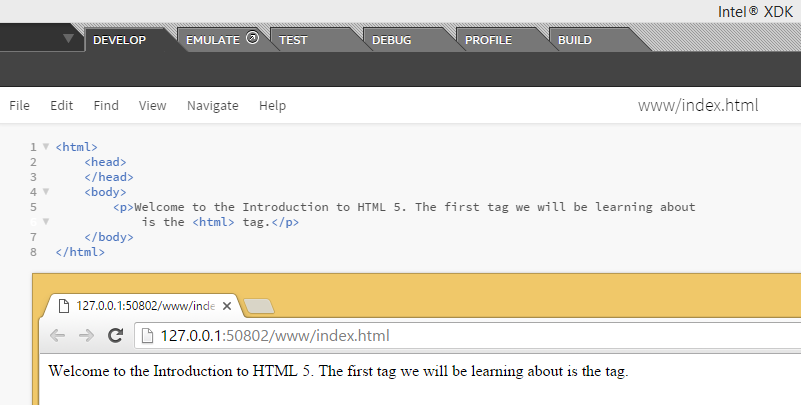
Did you notice the '<html>' tag is missing in your ouput? Basically, your browser mixed it up with an actual tag though you only meant it to be part of your sentence as text.
Because of this kind of confusion, HTML reserves certain characters. If you want to use these characters in your HTML, you need to use character entities to display them. In layman terms, character entities are like substitutes. There are entities in HTML for several categories and these include:
- currency symbols
- copyright, trademark and registered symbol
- general punctuation
- arrows
- mathematical symbols
- Greek letters
All HTML entities have a name and number. They can be written using either name or number.
If it is a name, an ampersand symbol '&' will precede it, followed by entity name and a semi-colon. Entity names are case sensitive.
&entity_name;
If it is a number, an ampersand '&' symbol, followed by the number/hash symbol '#', entity number and a semi-colon.
&#entity_number;
SPECIAL CHARACTERS
You can find all HTML entities, their names and numbers here: https://dev.w3.org/html5/html-author/charref
But can you imagine replacing all your characters with entities? That is going to make coding in HTML5 very difficult. Apart from the five special characters listed in the table below, you don't have to specify entities for others like math, currency and copyright symbols.
But for these, you definitely need to replace them with entities:
| Symbol | Entity Name | Entity Number | Usage |
| Less than '<' | < | < |
Div tag: <div>
|
| Greater than '>' | > | > | Div tag: <div> |
| Ampersand '&' | & | & | Tom & Jerry |
| Non breaking space ' ' - space that will not create a new line | |   | If you add multiple spaces, the browser will remove all but one. So you have to use this entity to add multiple spaces in your HTML page. |
| Quotes " | " | " |
Link to a another section on the same page using id of the element: <a href="#timetable">
Displayed as: <a href="#timetable">
" is generally encouraged for code. For an actual quotation, <q> or <blockquote> is preferred.
|
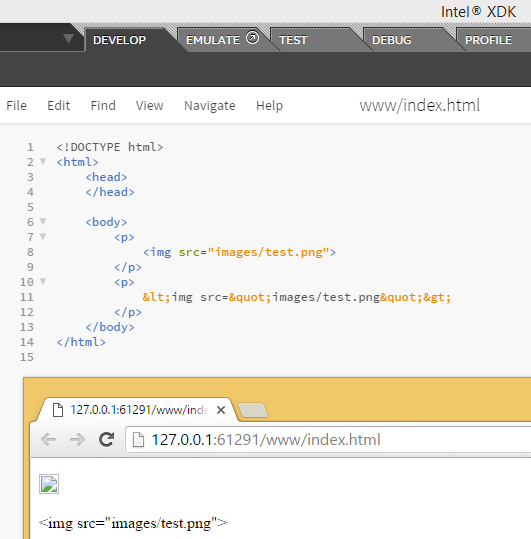
We do not want these special characters to be processed by the browser as HTML code. Instead, you want it to be displayed to the user. So if you wish to display this in your browser:
<img src="images/test.png">
You have to write it like this in your HTML code:
<img src="images/test.png">
Subscribe to:
Posts (Atom)
Social Profiles


Popular Posts
-
Hypertext A fundamental key to the World Wide Web is the concept of " Hypertext ". Hypertext is built on the idea of linking i...
-
Putting the "M" in HTML So the "M" in HTML stands for "Markup", but what does Markup really mean? Essent...
-
Learning from the mistakes others have made CHILDREN CAN BE GREAT AT ASKING QUESTIONS ABOUT THINGS THAT MOST ADULTS TAKE FOR GRANTED, A...
-
HTML entities and special characters HTML ENTITIES Before we learn what HTML entities are, let's look at how the need for them ca...
-
A few new tags to learn There are a lot more tags, but we will just cover a few more for now, mostly because they are straightforward to ...
-
Any text editor will do! The first computer programs were actually configurations of connections between circuits . A programmer would...
-
Do's and don'ts The history of Web pages is such that browsers tend to be very forgiving of certain types of mistakes. If you m...
-
All together now! One key to understanding HTML, or any computer language, is to be sure that you avoid ambiguity, because computers ge...
-
Hi, I'm Dale Schouten. Welcome to week 1 of the introduction to HTML5! This week, we're going to cover some of the history of HTM...
-
HTML5, CSS and JS WHAT IS HTML5? When people say 'HTML5', they usually mean a bit more than just the 5th version of the ...


