Before we learn what HTML entities are, let's look at how the need for them came about.
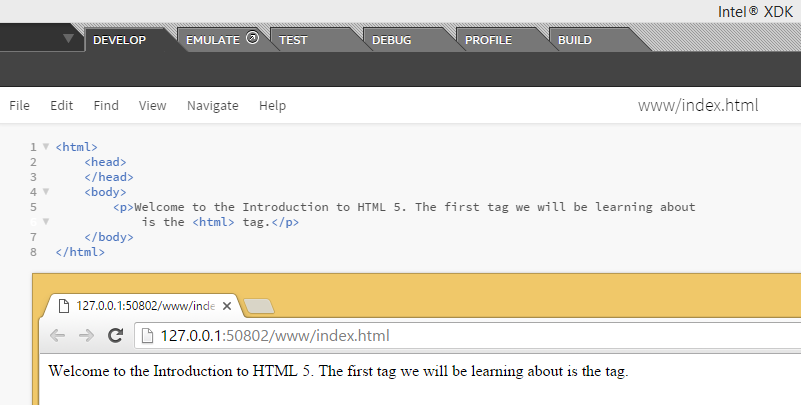
Try the following file in your HTML:
<p>Welcome to the Introduction to HTML 5. The first tag we will be learning about is the <html> tag.</p>
Did you notice the '<html>' tag is missing in your ouput? Basically, your browser mixed it up with an actual tag though you only meant it to be part of your sentence as text.
Because of this kind of confusion, HTML reserves certain characters. If you want to use these characters in your HTML, you need to use character entities to display them. In layman terms, character entities are like substitutes. There are entities in HTML for several categories and these include:
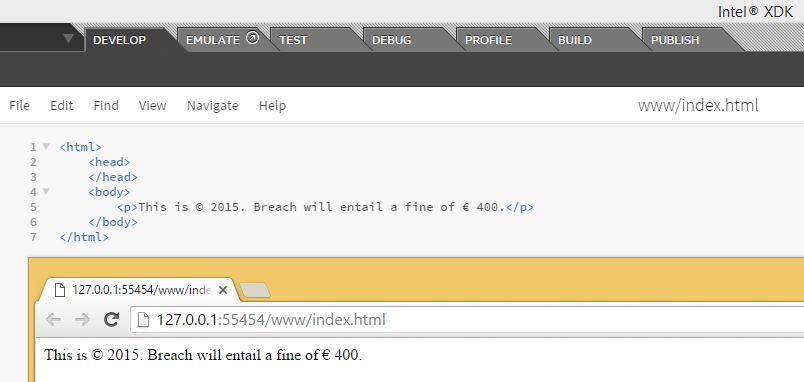
currency symbols
copyright, trademark and registered symbol
general punctuation
arrows
mathematical symbols
Greek letters
All HTML entities have a name and number. They can be written using either name or number.
If it is a name, an ampersand symbol '&' will precede it, followed by entity name and a semi-colon. Entity names are case sensitive.
&entity_name;
If it is a number, an ampersand '&' symbol, followed by the number/hash symbol '#', entity number and a semi-colon.
&#entity_number;
SPECIAL CHARACTERS
You can find all HTML entities, their names and numbers here: https://dev.w3.org/html5/html-author/charref
But can you imagine replacing all your characters with entities? That is going to make coding in HTML5 very difficult. Apart from the five special characters listed in the table below, you don't have to specify entities for others like math, currency and copyright symbols.
But for these, you definitely need to replace them with entities:
Symbol
Entity Name
Entity Number
Usage
Less than '<'
<
<
Div tag: <div>
Greater than '>'
>
>
Div tag: <div>
Ampersand '&'
&
&
Tom & Jerry
Non breaking space ' ' - space that will not create a new line
 
If you add multiple spaces, the browser will remove all but one. So you have to use this entity to add multiple spaces in your HTML page.
Quotes "
"
"
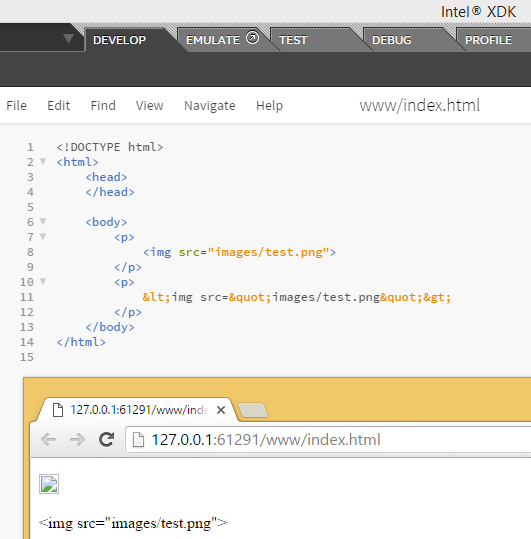
Link to a another section on the same page using id of the element: <a href="#timetable">
Displayed as: <a href="#timetable">
" is generally encouraged for code. For an actual quotation, <q> or <blockquote> is preferred.
We do not want these special characters to be processed by the browser as HTML code. Instead, you want it to be displayed to the user. So if you wish to display this in your browser:
A character can be any letter, digit or symbol that makes up words and languages. English alphabets and digits 'a-z', 'A-Z', '0-9' are all considered characters. Other examples of characters include the Latin letter á or the Chinese ideograph 請 or the Devanagari character ह. A character set is a collection of characters (letters and symbols) in a writing system.
Each character is assigned a particular number called a code point. These code points are stored in computer memory in the form of bytes (a unit of data in computer memory). In technical terms, we say the character is encoded using one or more bytes.
Basically, all the characters are stored in computer language and a character encoding is the awesome dictionary that is going to help us decode this computer language into something we can understand. In technical terms, it is what is used as a reference to map code points into bytes to store in computer memory; then when you use a character in your HTML, the bytes are then read back into code points using the character encoding as a reference.
Examples of character encodings include:
ASCII: contains letters, characters and a limited set of symbols and punctuation for the English language
Windows-1252 (Latin1): Windows character set that supports 256 different code points
ISO-8859-6: contains letters and symbols based on the Arabic script
Unicode: contains characters for most living languages and scripts in the world
When you code in HTML, you must specify the encoding you wish for your page to use. Providing no encoding or the wrong one is pretty much like providing the wrong dictionary to decode. It can display your text incorrectly or cause your data to not be read correctly by a search engine. A character encoding declaration in your HTML is also important to process unfamiliar characters entered in forms by users, URLs generated by scripts, etc.
You should always use the Unicode character encoding UTF-8 for your web pages, and avoid 'legacy' encodings such as ASCII, Windows-1252 and ISO-8859-6 mentioned above. Do not use the UTF-16 Unicode encoding either.
It is important to note that it is not enough to simply declare your encoding at the top of the web page.You have to ensure that your editor saves the file in UTF-8 also. Most editors will do that these days, but you should check.
Read an Introduction to character sets and encodings here.
In another unit we look at the big five special characters (<, >, &, nbsp, ""). Apart from these, there is actually no need to use entities for all the symbols found here: https://dev.w3.org/html5/html-author/charref. All browsers are built using Unicode internally, which means that they are capable of handling all possible characters defined by Unicode. So, the “best practice” for symbols like copyright, currency symbols, math and arrows is to simply type them directly into the source code.
One key to understanding HTML, or any computer language, is to be sure that you avoid ambiguity, because computers generally are not good at judgement calls. For example, you could streamline HTML so that whenever you see a <p> tag, you start a new paragraph, no close tag needed. That might work most of the time, but that would prevent you from nesting one element inside another, as the computer could not know if you meant the new element to be nested or a successor.
A human designer might be able to tell what you meant from the context, and knowing that mistakes happen choose the one she thinks is best suited in that case. A computer, on the other hand, has difficulty with a task like that, so it is helpful to use a close tag that matches the open tag to make things absolutely clear.
<p>
    The old lady pulled her spectacles
down and looked over them about the
room; then she put them up and looked
out under them.

    There was a slight noise behind her
and she turned just in time to seize a
small boy by the slack of his roundabout
and arrest his flight.
</p>
The old lady pulled her spectacles down and looked over them about the room; then she put them up and looked out under them. There was a slight noise behind her and she turned just in time to seize a small boy by the slack of his roundabout and arrest his flight.
A human reader could easily detect that two paragraphs were intended and that the writer probably just forgot to terminate one and start the other. The computer, on the other hand, will only see one paragraph and layout accordingly.
On the other hand, you might think that since a computer always knows exactly what tag it is working with (eidetic memory), you could provide a sort of "universal close tag" that doesn't specify the type that it's closing. It would know to close the current tag. While that's technically true, it's handy to have the close tag there for people reading the code. It makes it easier to remember what tag it is closing. We humans can get confused trying to remember that kind of detail.
But there are other ambiguities to consider. For example, when a browser receives a file, it may know that it's receiving an HTML file, but it won't know which version of HTML is used (it matters). That's why the first thing you need in any HTML file is a tag to tell you that what type of HTML file it is:
<!doctype html>
In other words, the first thing the browser sees is the declaration "This is an HTML5 file, in case you were wondering". It may seem tedious to put this at the top of every file, but believe me, it used to be worse. You probably noticed that it doesn't say "!doctype HTML5" but just "HTML". HTML5 can do this because all the previous versions were much more long winded. For example, at the top of an HTML 4.01 page, you might have something like this:
<!DOCTYPE HTML PUBLIC "-//W3C//DTD HTML 4.01//EN" "http://www.w3.org/TR/html4/strict.dtd">
We do not need to go into the details of why and what that means, just be grateful that HTML5 did away with it.
EVERYTHING IN HTML
It may seem redundant, but the next bit tells the computer where the actual HTML code begins, using an <html> tag:
<html>
Nearly every HTML document has two parts. The 'body' is the main content of the page, containing text, images, tables and so on. The 'head' comes before the 'body' (on top?). It is where you put information about the document that does not really go in the body, AKA 'meta-' information. Things like what kind of character set is it using, where it can find style tips and what is the title of this page as the browser sees it (which might be different from the title the user reads) all go in the <head>. If you have been paying attention, you should be able to create a very basic html file, in the right form, without any content. Hint, for the head of the document you would write:
<head>
</head>
You may recall the paragraph tag <p> that we used in the example above. Try inserting a paragraph into the body of your new document. You should end up with something that looks like this:
<!doctype html>
<html>
<head>
</head>
<body>
<p>
As my English teacher used to say, 'One sentence does not a paragraph make'!
</p>
</body>
</html>
Live coding video: coding HTML from scratch
Ok, we're going to build an index.html totally from scratch.
First thing is that we'll start a new project, and I'll use the blank template,
but as you might recall there's a lot of boilerplate stuff in the
blank template that we don't want right now, so we're just going to delete that.
OK, now just select everything and delete it. And we're off to a good start here.
Remember, the first thing we need in the file is the DTD tag or "Document Type Declaration".
This is a special tag that tells what version of HTML this file is which for HTML5 is very simple.
That's the beginning of the file. Now we need the HTML element which will take up the rest of the file.
So we create an HTML element which will be the parent of every other element in the file.
Typically the HTML element will hold two things:
the <head> element, where you put mostly information that doesn't show up directly;
and then the body element where most of the visible content goes for your file.
And so just to try that, we're going to type a little bit here…
So now we've got some content in our body,
and we can go to the emulate tab, but first we need to save our file.
Now go over to the emulate tab and see what it looks like.
There's the text we wrote…
but that's not ideal for developing so we're going to
open this panel on the right and expand "Live Layout Editing ».
This will give us a more up-to-date way of seeing what we're doing.
Start that with your favorite browser, either Chrome or Firefox, and now we've got a browser window that will update as I type.
You can see, for example, if I decide to delete this and put a heading there,
you can see it's almost instantaneous there.
It's very helpful when you're trying to develop and debug your code.
We'll put in a paragraph with a little more text so you can see the difference between sizes and such.
And that gives us a complete Web page built from scratch, so now you know how to do everything.
Let's add in a title. Now the title doesn't show up in the body of the page,
it will show up on the window, right up there at the top of the window.
It's a nice little extra to have on your Web page,
and we're done! That's all there is to it!
Most of what we'll cover about attributes will come later, but I wanted to introduce the idea briefly. Basically, a given element on your webpage can be distinguished by any number of unique or common attributes. You can identify it uniquely with an 'id' attribute, or group it with a class of other elements by setting the 'class' attribute.
Attributes in HTML are written inside the opening tag like this:
<pid="paragraph-1"class="regular-paragraphs">
Call me Ishmael . . .
</p>
The paragraph above has a unique identifier, "paragraph-1" and is part of a class of "regular-paragraphs". The letters inside the quotes have no meaning to the computer, they just need to be consistent. They are actually strings, which as we will soon learn, if you want to have another paragraph in this class, it has to say "regular-paragraphs", not "regular" or "Regular-Paragraphs" or any other variation.
Again, the fact that the computer does not care what we put in those strings (except for some restrictions) means we can use them to convey meaning to a human developer. I could just as easily have said id='x' and class='y', but anyone looking at that would have no hint what the significance of x and y are. Best practice is to name these things to increase clarity, consistency and brevity.
Computers are great at reading computer languages, but it's not always easy for humans. Comments are a way of adding some text that is primarily targeted towards human readers.
Every programming language I've used has some way of representing comments. HTML5 is no exception. If you want to add something in your file that you want the browser to completely ignore, there's a special tag for that (unsurprisingly called a "comment tag"):
<!-- This is a comment -->
An HTML comment tag starts with '<!--' and ends with '-->', meaning that as the computer is reading through your HTML file, if it sees '<!--' it will ignore everything it sees until it comes across '-->'. There is no open or close tag, just a comment tag. Unlike most other things in HTML5, comments cannot be nested. If you try that, like
<!--
Beginning of comment
<!-- comment nested inside -->
This is after the nested comment
-->
then the computer will see the beginning of the comment tag and start ignoring everything until it sees '-->', including the second '<!--'. Once it sees '-->' it assumes the comment is done and goes back to processing everything it sees as HTML code and content, even though the writer may have meant it to be a comment.
Like most other tags, it can span multiple lines of your source file. This can be really convenient when you have a lot to say:
<!--
If you want some good advice,
Neither a borrower nor a lender be,
For loan oft loses both itself and friend,
And borrowing dulls the edge of husbandry.
-->
Comments are also commonly used in development to block out bits of code, whether for testing or leaving unfinished business in the file:
<!-- Not sure if I want this wording or not:
<p>Eighty seven years ago, a bunch of guys started a new country</p>
-->
It's important to remember that just as HTML, CSS and JavaScript are three different languages, they each have their own way of writing comments. This might seem confusing, but it's actually kind of important that the HTML comments, at least, differ from the others. As for the exact form of those comments, we'll cover that in good time.
'Tags' are what we use to organize a text file (which is just a long string of characters) such that it represents a tree of elements that make up the html document. Tags are not the elements themselves, rather they're the bits of text you use to tell the computer where an element begins and ends. When you 'mark up' a document, you generally don't want those extra notes that are not really part of the text to be presented to the reader. HTML borrows a technique from another language, SGML, to provide an easy way for a computer to determine which parts are "MarkUp" and which parts are the content. By using '<' and '>' as a kind of parentheses, HTML can indicate the beginning and end of a tag, i.e. the presence of '<' tells the browser 'this next bit is markup, pay attention'.
What ever that tag (or 'open tag') does, it applies to the content following the tag. Unless you want that to be the entire rest of the document, you need to indicate when to stop using that tag and do something else, so '<' and '>' are again used. Since elements are typically nested within other elements, the browser needs to be able to distinguish between the end of the current tag or the beginning of a new tag (representing a nested element). This is done by adding a '/' right after the '<' to indicated that it's a 'close tag'. To indicate the beginning and end of a paragraph (indicated by the single letter 'p') you end up with something like this:
<p>This is my first paragraph!</p>
The browser sees the letters '<p>' and decides 'A new paragraph is starting, I'd better start a new line and maybe indent it'. Then when it sees '</p>' it knows that the paragraph it was working on is finished, so it should break the line there before going on to whatever is next.
Fore example, the '<em>' tag is used for element that needs Emphasis. The '<' and '>' indicate that this is a tag, and the "little bits of text" in between tell us what kind of tag it is. To completely describe the element, it needs an open and close tag, with everything in between the tags is the contents of the element:
Most tags have open and close versions, but there are a few strange ones. We'll learn more about these later, but we generally refer to the strange ones as "self closing" tags. Usually these tags represent an element that is completely described by its attributes, and thus there is no need for other content. So if you see something like this:
... then you should know that the slash at the end of the open tag is sort of a shorthand for a close tag, so you won't see any other indication that this element is now complete. There are also a few tags that don't even use the '/' at the end, they just don't have any close tag at all. This works because all of the information this tag needs is declared in an "attribute".
If you are sitting at a coffee shop next to a table of Web developers, you will probably hear three words quite a bit: 'Tags', 'Attributes' and 'Elements' (or sometimes 'DOM elements', same thing just more precise and wordy).
'Elements' are the pieces themselves, i.e. a paragraph is an element, or a header is an element, even the body is an element. Most elements can contain other elements, as the body element would contain header elements, paragraph elements, in fact pretty much all of the visible elements of the DOM.
Consider the figure above. It contains a single <html> element. It turns out this includes within it the entire content of your html file. If you click on the "html" node, you'll find that it contains two components, a head and a body. Clicking on each of those will reveal their respective contents. This structure is what we computer scientists call a "tree". Any given element (except for the outermost <html> element) is wholly contained inside another element, referred to as the "parent" element. Not surprisingly, the elements that a given element contains are its "child" elements. And, yes, children of a common parent are often referred to as "siblings".
Thus in the example above, the top element is the html element, which contains just two elements, the head and body. The head element contains a title element and the body contains an <h1> element and a <p> element. In a more typical example, the body would contain many more children, but for our purpose this is enough.
That may be a great picture, but how do we represent such a structure in a text file? Well, that's where "tags" come in.